5.2 Viewing Your Websites
To open the Websites list, click Websites in the left navigation.
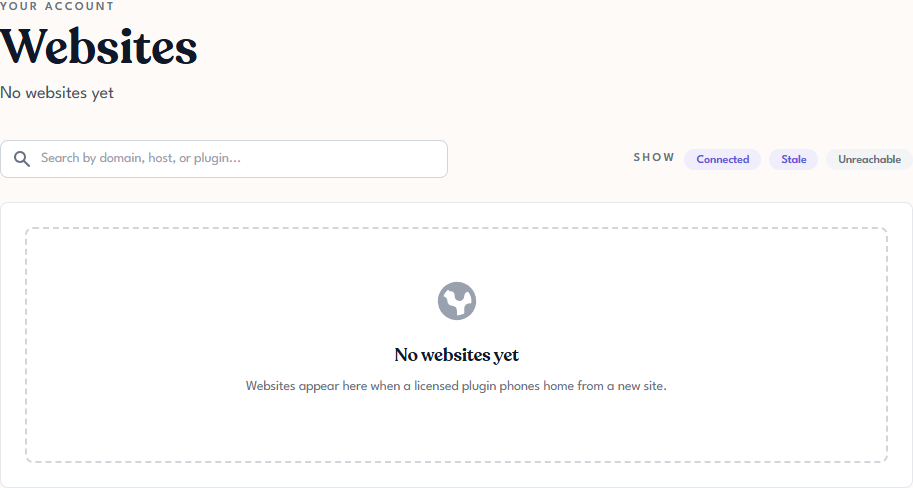
If no sites have activated any of your licenses yet, the page shows a No websites yet placeholder and the summary above the list reads No websites yet. Once activations start happening, sites begin appearing here without any action from you. See Understanding Connected Websites for how sites get onto the list.
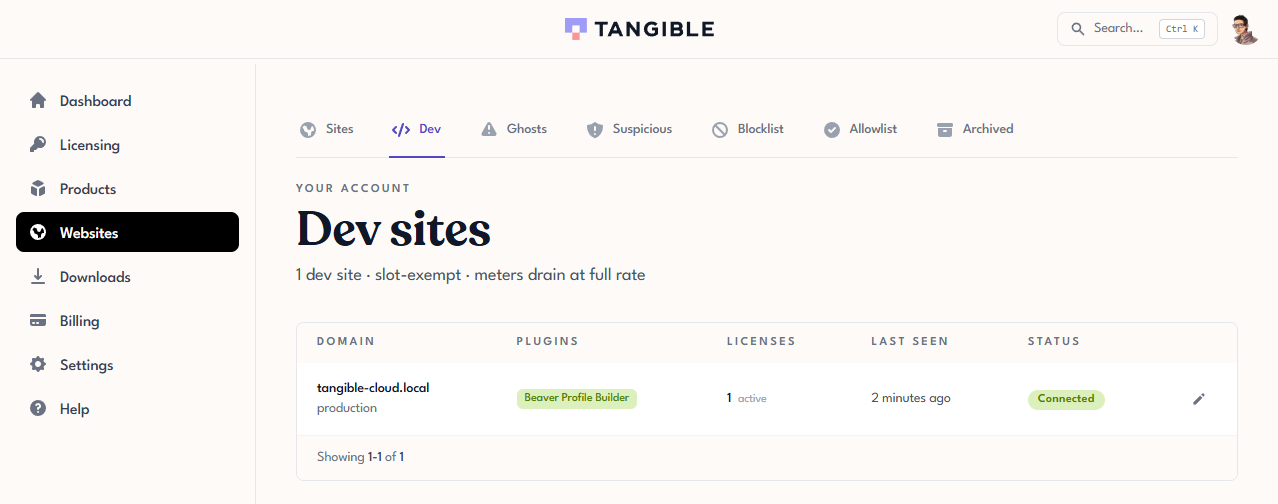
Opening a website's detail page
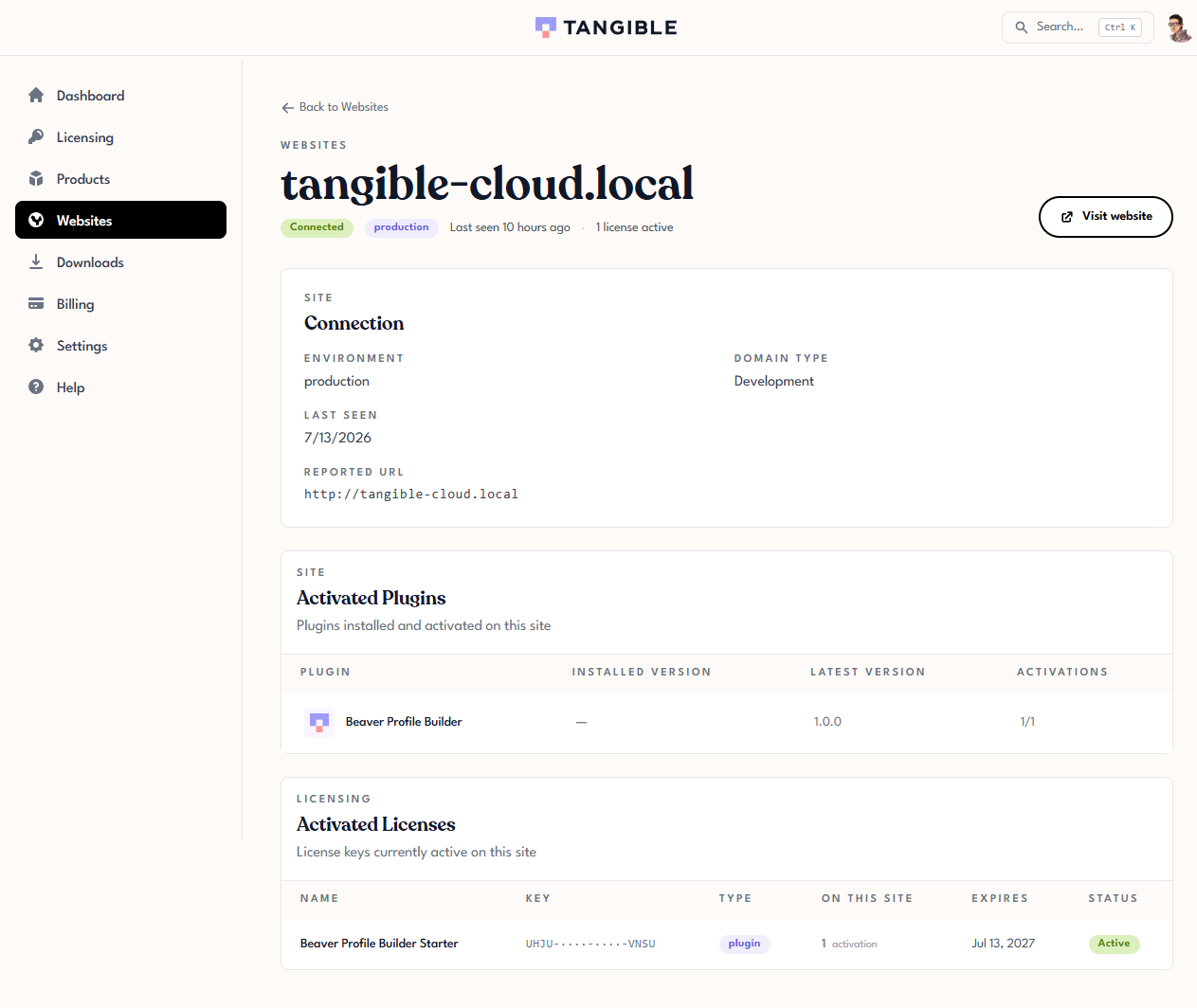
Click any site in the list to open its detail page, a read-only view of everything Tangible Cloud knows about the site:
- Connection: the site's environment, domain type (for example, Development for a
.localhost), when it was last seen, and the URL it reported. - Activated Plugins: every Tangible plugin the site has reported running, with installed version, latest version, and its activation count.
- Activated Licenses: the license keys currently active on the site, with type, expiry, and status.
- Visit website: a quick link to open the site itself in a new tab.
The detail page is informational. There's no edit action on it. To change how a site is licensed, deactivate or re-activate from WordPress (see Deactivating a Site), or use the account-level Domain Rules.
Searching
Use the search box above the list to filter by:
- Domain: any part of the site's domain (for example,
example.com). - Host: a specific hostname, useful when you have multiple hosts under one domain (for example,
shop.example.com). - Plugin: the Tangible plugin activated on the site (for example,
Lifter Elements).
Search applies as you type. You don't need to press Enter.
Filtering by connection status
Three filter pills next to the search box control which sites appear in the list:
- Connected: sites with a recent successful check-in.
- Stale: sites that haven't checked in recently.
- Unreachable: sites that appear to be offline or blocking Tangible Cloud's attempts to contact them.
You can enable any combination of pills. See Connection Status for what each status means in detail and what usually causes a site to fall out of Connected.
If a site you expect to see is missing from the list, it's probably not a search or filter issue. The plugin never completed an activation. Check Licensing: if the license the site should be using shows 0 activations, the activation never reached Tangible Cloud. Return to Activating a Plugin on Your Site for troubleshooting.