4.3 Activating a License on a Site
This page covers the Tangible Cloud side of activating a license: copying the key and confirming the activation went through. For the first-time walkthrough that also covers downloading and installing the plugin, see Activating a Plugin on Your Site.
Before you begin
Have:
- A WordPress site with the Tangible plugin installed and activated in WordPress.
- A valid Tangible Cloud license for that plugin, visible on the Licensing page with status Active and at least one remaining activation slot.
Copy the license key
-
Click Licensing in the left navigation.
-
Find the license for the plugin you want to activate. Use the search or filter pills if needed (see Viewing Your Licenses).
-
Click the copy icon next to the masked key in the Key column. The full key is copied to your clipboard.
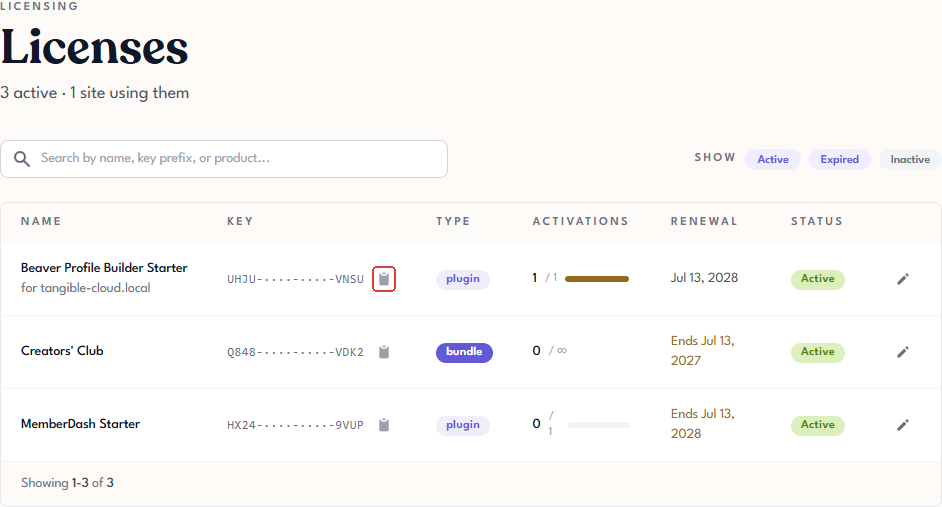
Alternatively, open the license detail page and click Reveal, then Copy, next to the license key.

Paste the key into the plugin's License tab
Switch to your WordPress site's admin area. Each Tangible plugin adds a License tab inside its own settings. The exact location varies per plugin. The plugin-specific documentation has the path.
Paste the key into the License Key field and click Activate.
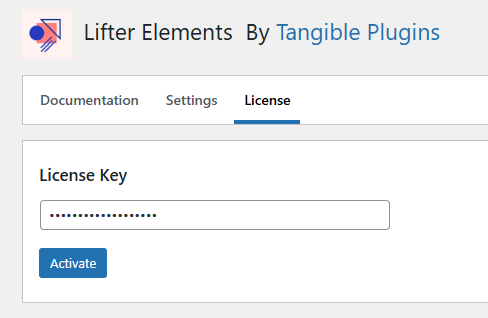
The exact tab location varies per plugin; this example shows Lifter Elements.
Confirm the activation in Tangible Cloud
Back in Tangible Cloud:
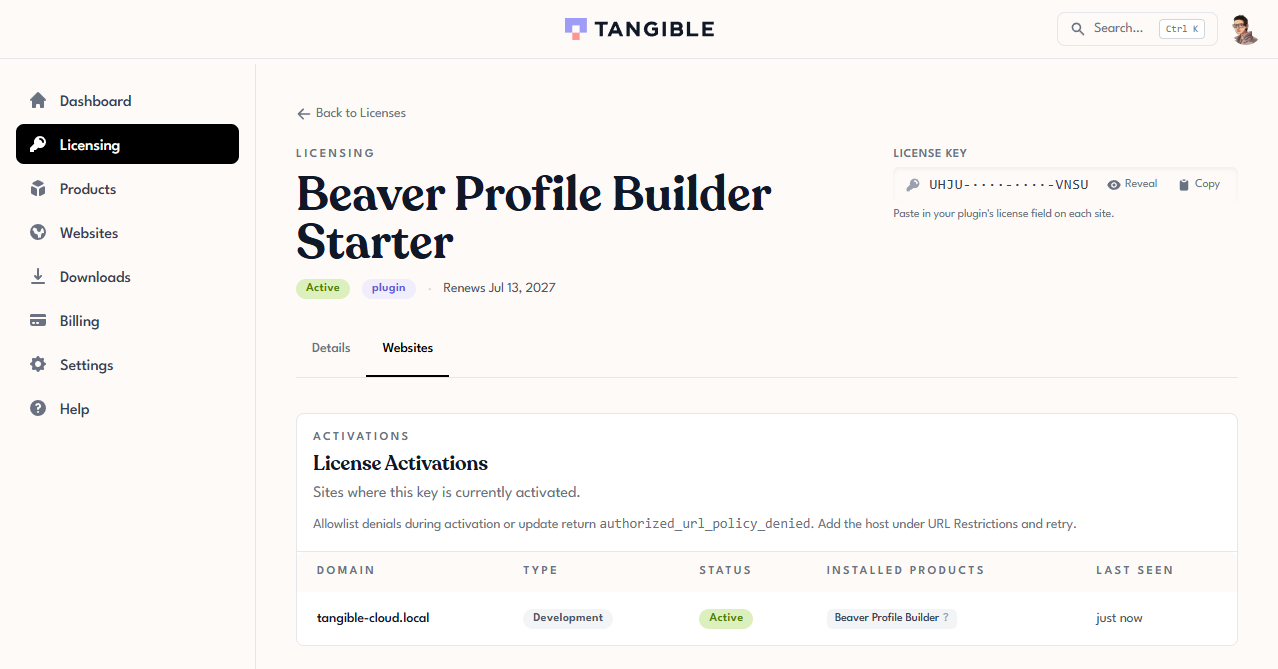
- Open the license detail page from Licensing.
- Open the Websites tab (headed License Activations).
- The site you just activated appears in the list with status Active, showing its domain, type, installed products, and last-seen time.
Two other places confirm the activation succeeded:
- Websites in the left navigation lists the site with the plugin under it.
- The license's activation count on the Licensing list page increases by one (for example,
0/1becomes1/1).
If the activation is rejected
The most common rejection is the authorized_url_policy_denied error. It means an account-level allowlist or blocklist rule is refusing the site you're activating. See Domain Rules for how to review and update those rules.
For other errors (license expired, activation limit reached, connection pending), see the troubleshooting section in Activating a Plugin on Your Site.