4.2 Viewing Your Licenses
The Licensing page is the list of every license your organization owns. To reach it, click Licensing in the left navigation of Tangible Cloud.
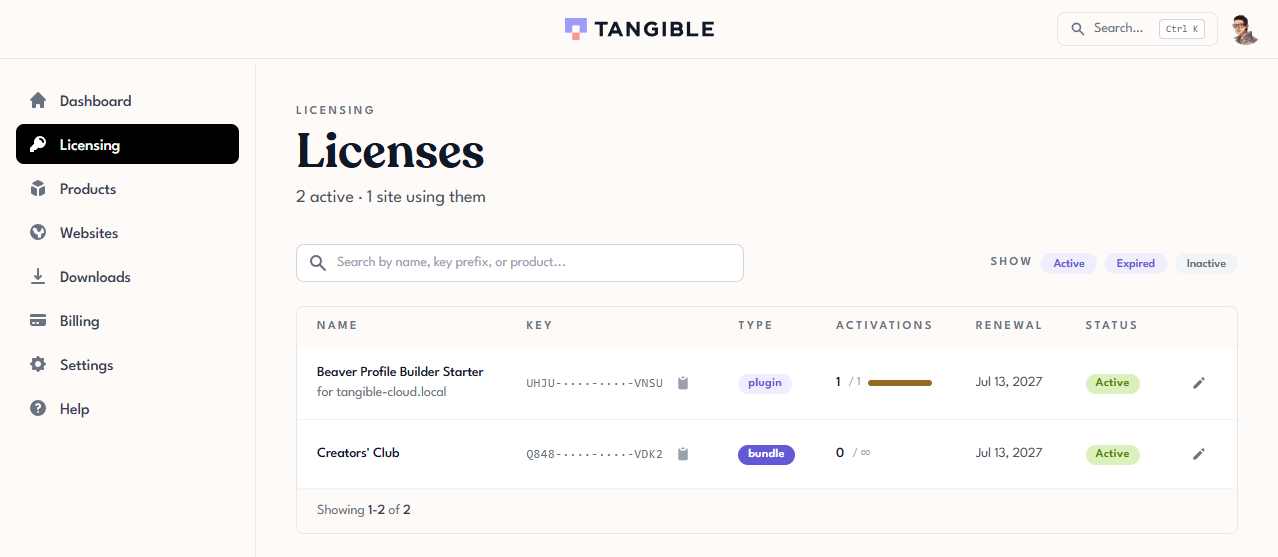
The list view
The summary above the table tells you how many licenses are in the view (for example, 2 active).
Each row in the table represents one license.
| Column | What it shows |
|---|---|
| Name | The display name of the license. For licenses created from a purchase, this is the product and tier (for example, Lifter Elements Starter). |
| Key | The license key, masked to show only the first and last four characters (e.g. 7ZAK-····-····-6TCT). Click the copy icon to copy the full key to your clipboard. |
| Type | Either plugin or bundle. See Understanding Licenses, Grants, and Activations for the difference. |
| Activations | Current usage vs. allowance. For example, 0 / 1 means zero sites are activated out of one allowed. 0 / ∞ means the grant has no set activation limit. |
| Renewal | The date the license's subscription next renews (for example, Jul 13, 2027). If the subscription has been set to cancel, this reads Ends <date>. The license stays usable until that date, then becomes Expired. |
| Status | Active (usable), Expired (past its expiration date), or Inactive (manually disabled). |
| Actions | Pencil icon that opens the license detail page, where you can view the license's grants (Details tab), see the sites it's activated on (Websites tab), and add notes. |
Clicking on any row (or the row's pencil icon) opens that license's detail page. Detail-page behaviour is covered in the pages that follow.
Searching
Use the search box above the table to filter by:
- Name: any text that appears in the license's display name.
- Key prefix: the first few characters of the key (the part that's visible without revealing). Useful when someone gives you a partial key to look up.
- Product: the name of the product the license grants access to.
Search is applied as you type.
Filtering by status
Three filter pills sit next to the search box, under the Show label. They control which licenses appear in the table:
- Active: licenses that are usable.
- Expired: licenses past their expiration date.
- Inactive: licenses manually disabled.
A pill is highlighted in indigo when that filter is on, and stays grey when it's off. Click a pill to toggle it, and combine them in any way you like.
By default, Active and Expired are both on and Inactive is off. Your selection is carried in the page's address (for example, ?status=active,expired,inactive), so you can bookmark or share a particular view.
If you can't find a license you expect to see, clear the search field first, then check the pills. Because Inactive is off by default, a manually disabled license stays hidden until you switch that pill on.