7.1 Understanding Organizations and Members
An organization in Tangible Cloud is the container that owns everything you can see in the app: licenses, subscriptions, downloads, activated websites, and team members. When you look at the Licensing, Billing, or Websites page, you're looking at one organization's data. Switching to a different organization changes what you see.
Which organization am I looking at?
If more than one organization is available to you, a switcher sits at the top-left of the header, showing the one you're currently viewing. It's the quickest way to check whose data you're working with, and the quickest way to switch (see below).

If you only have access to one organization, the switcher doesn't appear at all: there's nothing to switch between, so the header shows no organization name. To confirm your context in that case, open Organizations from the User menu. It states Current organization context at the top.
Why organizations exist
Organizations separate ownership cleanly. If you're a freelancer managing your own plugins on your own sites, you probably have one organization and will never need another. If you're part of an agency, a client, or a studio, each group you work with can have its own organization. Their licenses and billing stay separate from yours, and the sites your account can see change based on which organization you're viewing.
Being part of multiple organizations
A single Tangible Cloud user account can belong to multiple organizations. To see which ones:
- Open the User menu in the header.
- Click Organizations, or navigate directly to
tangible.one/organizations.
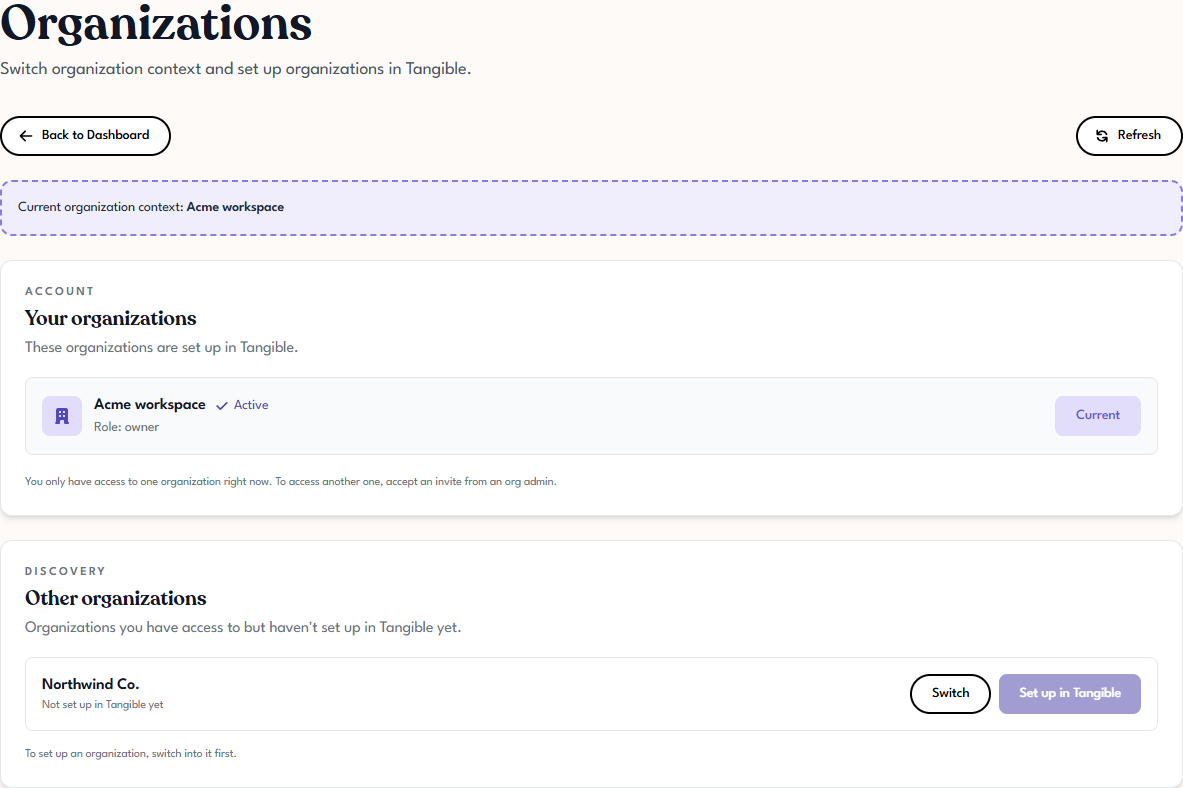
The Organizations page has two sections:
- Your organizations: the ones that are already set up in Tangible Cloud. This is where you'll see the organization you're using (flagged as Current) and any others you've joined.
- Other organizations: organizations your account has been granted access to through the identity provider but haven't been set up in Tangible Cloud yet. These are inactive as far as Tangible Cloud is concerned until someone (typically an admin) initializes them.
Switching to a different organization
If you're part of more than one organization, the quickest way to switch is the organization switcher at the top-left of the header. Open it and pick another organization. A tick marks the one you're currently in, and each entry shows either your role in that organization or Not set up yet if it hasn't been initialized in Tangible Cloud. Manage organizations at the bottom opens the full Organizations page.
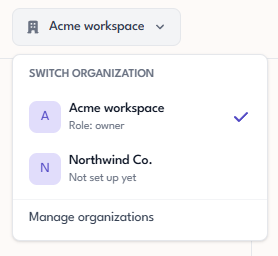
You can also switch from the Your organizations list on the Organizations page (click Switch on the one you want). Either way, Tangible Cloud refreshes and every page you visit afterward shows the new organization's data.
Account and organization settings
Open Settings from the User menu → Account settings to manage your profile and your organization. The page has three tabs: Account, Team Members, and Invitations.
The Account tab holds:
- Account Information: your profile photo (Change photo, up to 2 MB), First Name, and Last Name. Your Email is shown but not editable here; it's managed by your sign-in provider. Click Save Changes after editing.
- Password: Send password reset email to set or change your password.
- Organization: your organization's Name (editable), plus a Timezone setting (marked coming soon). Click Save Changes to update.
- Danger Zone: Leave Account, covered in Leaving an Organization.
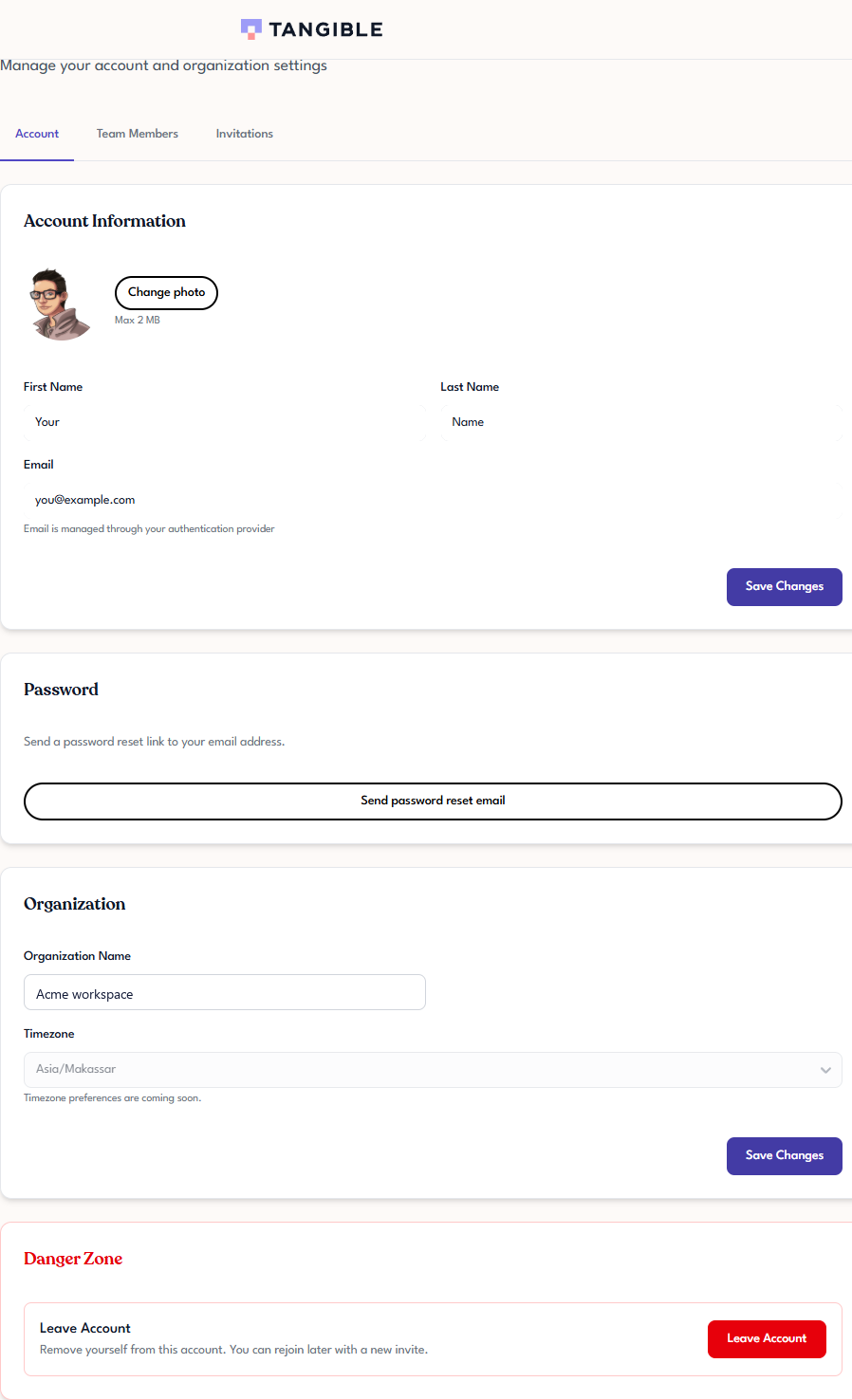
Note that Account Information is about you (your name and photo), while Organization is about the workspace itself. Editing the organization's name changes it for everyone in it, not just for you.
The Team Members and Invitations tabs are covered in Inviting a Team Member and Managing Invitations.
Members of an organization
Each organization has a list of members, the user accounts with access to it. Members are viewed and managed under Settings → Team Members (see Inviting a Team Member and Managing Invitations).
Each member has a role that determines what they can do. See Roles and Permissions for the full list and what each role controls.
Joining an additional organization
You can't add yourself to an organization. To join a new organization, someone with permission (typically an admin or owner) in that organization needs to invite you. Once you accept the invitation, the organization appears in your Your organizations list and you can switch to it.