7.2 Roles and Permissions
Every member of an organization has exactly one role. The role controls what the member can see and do: what licenses they can manage, whether they can invite others, whether they can access billing, and so on.
Tangible Cloud has six roles. Picking the right role when you invite someone is about matching the role to what they actually need to do.
The six roles
| Role | Best for |
|---|---|
| Owner | The person (or people) ultimately responsible for the organization. |
| Admin | Team leads and operational managers who look after the team and the organization's settings. |
| Billing | Finance owners who handle payment and invoices. |
| Developer | Engineers and implementers doing the day-to-day work with licenses, downloads, and sites. This is the default role for new invitations. |
| External Developer | Contractors or vendors who should reach only specific products, websites, or licenses rather than everything. |
| Accountant | Audit or finance-adjacent people who need to see billing without changing it. |
What each role can do
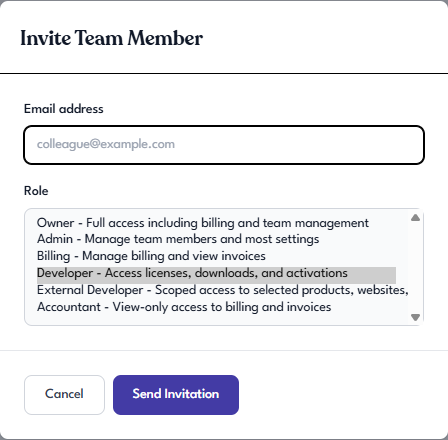
The dropdown in the invite dialog summarizes each role in one line:
- Owner: Full access including billing and team management.
- Admin: Manage team members and most settings.
- Billing: Manage billing and view invoices.
- Developer: Access licenses, downloads, and activations.
- External Developer: Scoped access to selected products, websites, and licenses.
- Accountant: View-only access to billing and invoices.
Picking the right role
A practical rule of thumb:
- If someone pays the bills, Billing or Owner.
- If someone handles the tech (installing, activating, maintaining sites), Developer.
- If someone from outside the organization needs limited access to particular products or sites, External Developer.
- If someone needs read-only visibility for audit or reporting, Accountant.
- If someone needs to manage other members and the organization's settings, Admin.
- Reserve Owner for the one or two people who need authority over everything, including who else is an Owner.
Changing a member's role
To change a member's role:
-
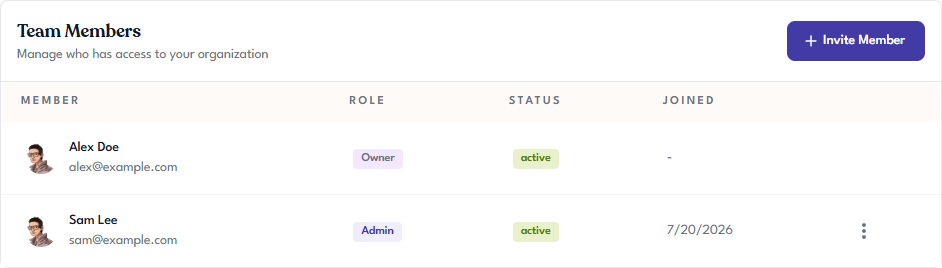
Go to Settings → Team Members. Each member is listed with their role, status, and the date they joined.
-
Find the member whose role you want to change and click the ⋮ (three dots) at the end of their row.
-
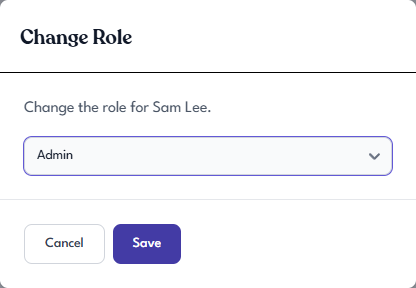
Choose Change Role.
-
Pick the new role from the dropdown, then click Save.
The same ⋮ menu also has a Remove option for taking someone out of the organization.
Your own row has no ⋮ menu. You can't change or remove yourself this way; to leave an organization, see Leaving an Organization.