3.2 Buying a Product
Every purchase in Tangible Cloud uses a two-stage checkout: pick a product and tier in the catalog, review the order on Tangible Cloud's own Checkout page, then enter your payment details on a Stripe-hosted page. When Stripe confirms, Tangible Cloud creates your license, subscription, and download records.
If this is your first purchase, see the step-by-step walkthrough in Buying Your First Product. This page is the shorter reference for subsequent purchases.
The purchase flow
-
On the Products page, click the Get More Products tab.
-
Find the product you want to buy and click Buy now on its card.
-
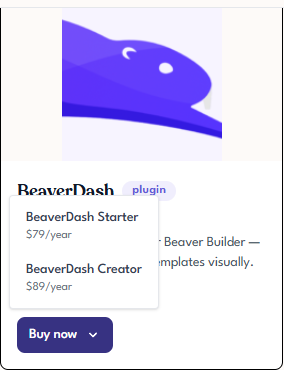
If the product has more than one tier, a dropdown opens under Buy now. Choose the tier you want.
-
Tangible Cloud takes you to its Checkout page (still on
tangible.one) to review the order. Check the tier, the organization the purchase will apply to, and the total. Apply a promo code if you have one. Click Continue to Stripe checkout.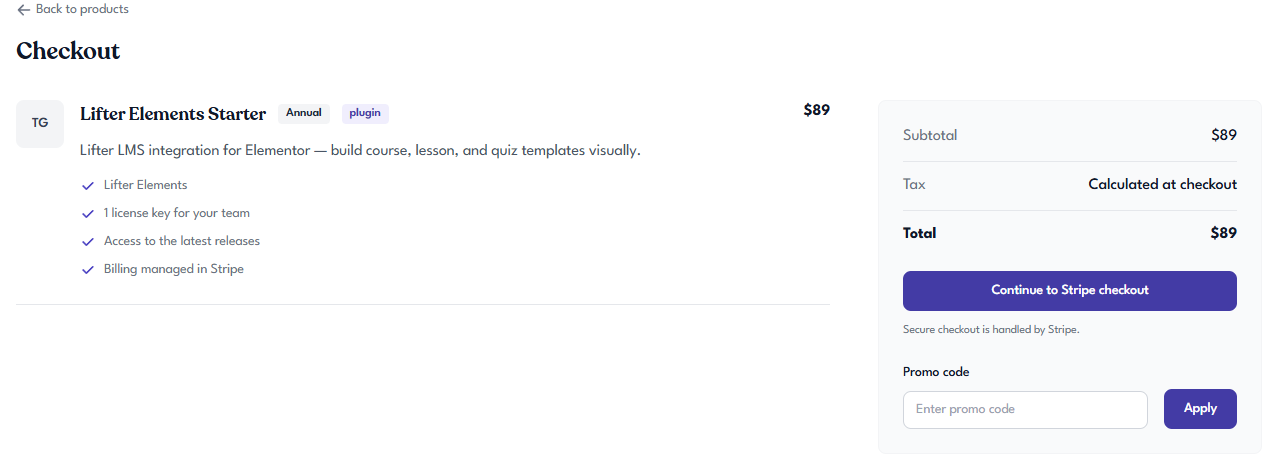
-
Stripe's hosted checkout opens. Enter card details, cardholder name, and billing address, then click Subscribe. For the payment step in detail, see Buying Your First Product.
-
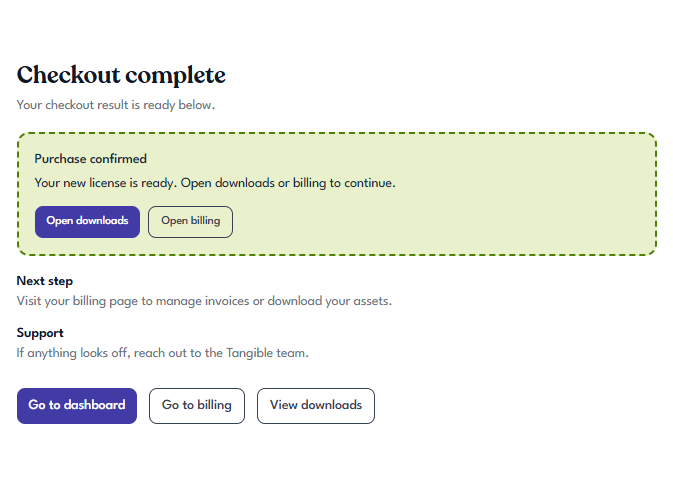
When Stripe confirms, you're redirected to a Checkout complete page in Tangible Cloud with shortcuts to your new downloads and billing.
What you receive after a purchase
Within seconds of the payment confirmation, three linked records appear:
- A license under Licensing with a new key you can activate on your sites.
- A subscription under Billing with the renewal date and a link back to the license it issued.
- The product in the My Products tab on the Products page, where you can download the latest version and see its changelog.
If you refresh and don't immediately see the new records, wait a minute and refresh again. On rare occasions the Stripe webhook that creates the records is delayed.
Buying another license for a product you already own
You don't have to upgrade the existing license to add more activations. You can buy a separate license for the same product instead. This is useful when you want billing separated (for example, one license per client).
To buy another license:
-
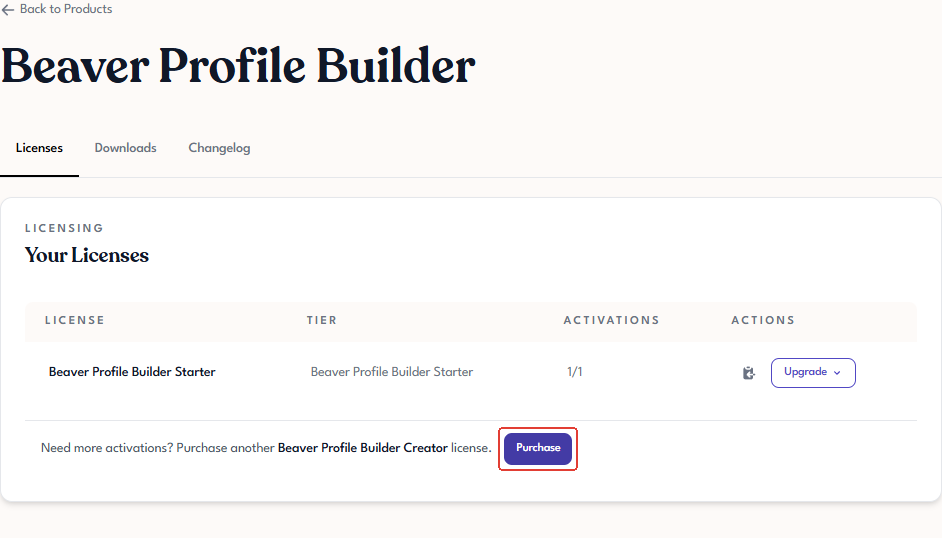
Open the product's detail page from My Products. The Licenses tab opens by default.
-
Click Purchase below the Your Licenses table (this option is labelled something like "Need more activations? Purchase another [Product Name] [Tier] license").
-
Continue through Stripe as normal.
If you'd rather increase the allowance on your existing license, see Upgrading a License Tier.