3.3 Managing Your Purchased Products
After you buy a product, it shows up on the My Products tab of the Products page. From there you can open its detail page to view licenses, download the plugin, and check the changelog.
The My Products tab
Click Products in the left navigation. The My Products tab is selected by default.
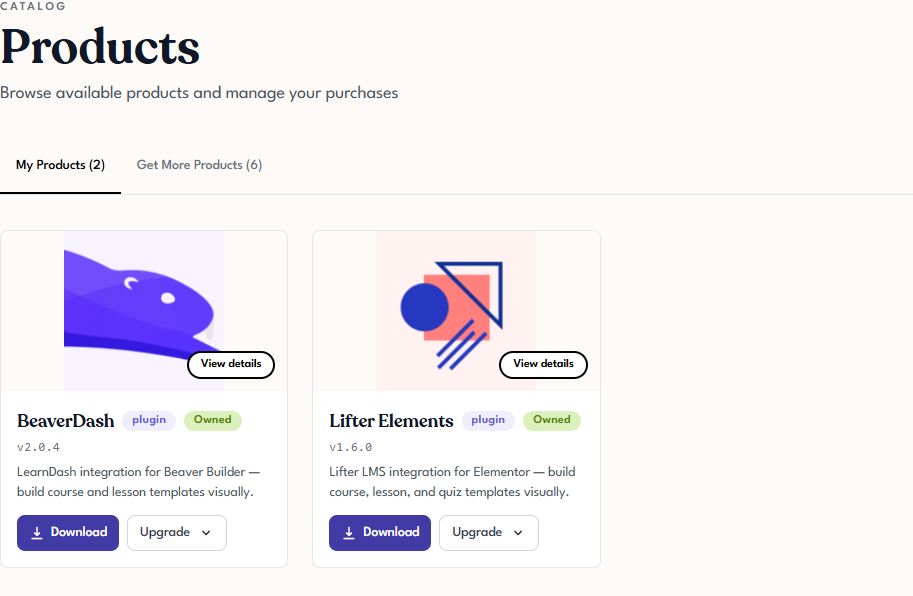
Each card on this tab includes:
- The product's image, name, and plugin or bundle badge
- An Owned badge (to distinguish owned products from catalog entries if they ever appear together)
- The current version
- A one-line description
- Download and Upgrade buttons for quick access to the most common actions
- A View details overlay on the image that opens the product's detail page
The product detail page
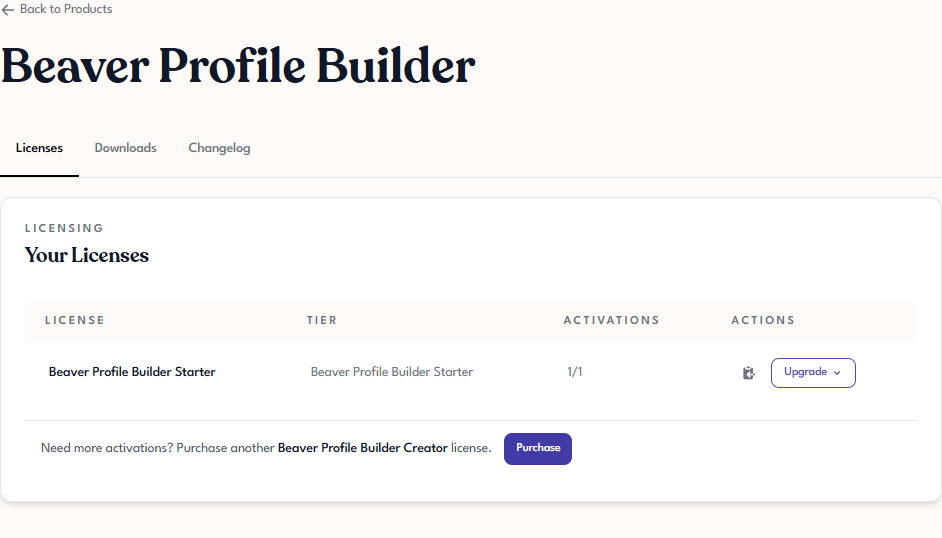
Clicking a card (or the View details overlay) opens the product's detail page. It has three tabs: Licenses, Downloads, and Changelog.
Licenses tab
The Licenses tab opens by default. A table lists every license your organization owns for this product, with columns for:
- License: the license name, linked to the license's detail page.
- Tier: the tier level (for example, Lifter Elements Starter or Creator).
- Activations: current usage vs. allowance (for example,
1/1). - Actions: a Copy Key icon and an Upgrade dropdown for moving to a higher tier.
Below the table, a secondary purchase option lets you buy another license of a higher tier if you want separate billing for additional activations.
If your organization doesn't own the product, this tab reads No licenses for this product yet instead.
Downloads tab
The Downloads tab shows the plugin zip for the latest version, along with the size and version number. The Copy URL button puts the download URL on your clipboard (for pasting into an automated pipeline); Download saves the zip to your computer directly.
Changelog tab
Click the Changelog tab to see the product's version history. Every release that has been published to Tangible Cloud, in date order.
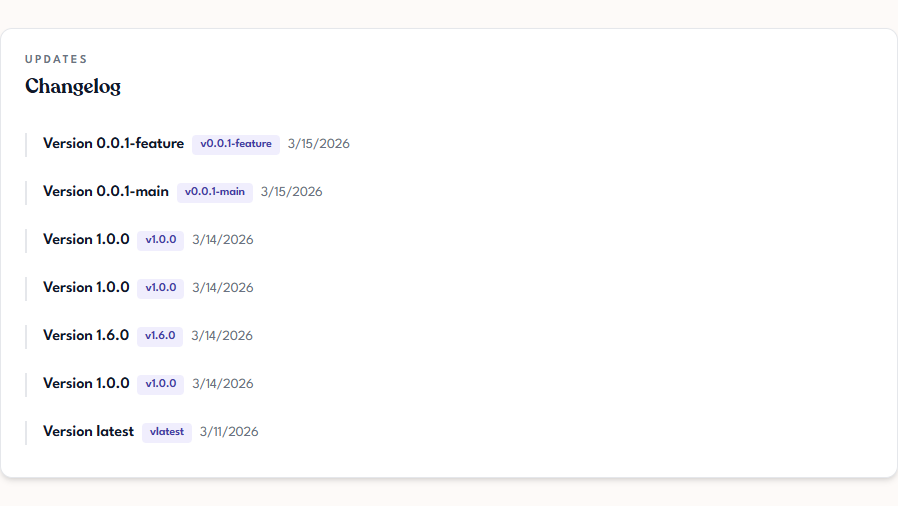
The Changelog lists versions by number and release date only. Written release notes aren't shown in the Tangible Cloud UI. For detailed release notes, refer to the plugin's own documentation on docs.tangibleplugins.com.