2.1 Signing Up and Signing In
Tangible Cloud uses a hosted sign-in page provided by our identity provider. Creating an account and signing in both happen there: when you visit a page that requires you to be signed in, Tangible Cloud redirects you to that hosted page, then returns you to where you were headed once you're authenticated. If you don't have an account yet, start by creating one.
Creating a new account
-
Go to tangible.one and let Tangible Cloud redirect you to the hosted sign-in page.
-
Under the email form, click the Sign up link.
-
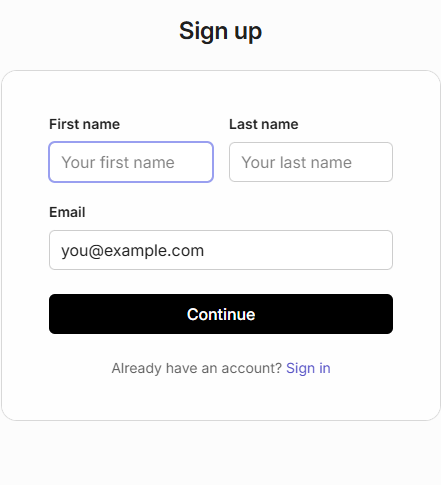
On the sign-up page, enter your first name, last name, and email address, then click Continue.
-
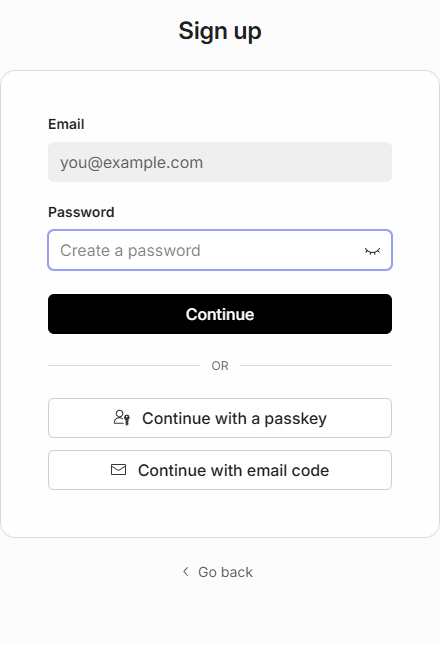
Set a password and click Continue. You can also register a passkey or use a one-time email code instead of a password.
-
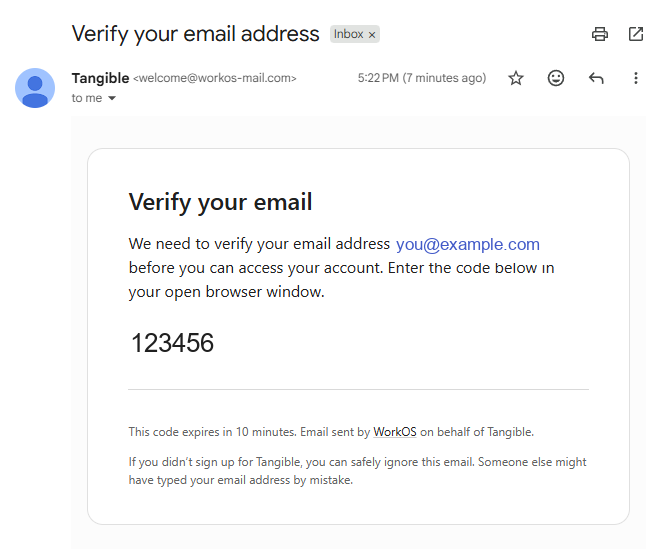
Verify your email address. Tangible Cloud sends a six-digit code to your inbox; enter it on the verification screen to confirm the address.
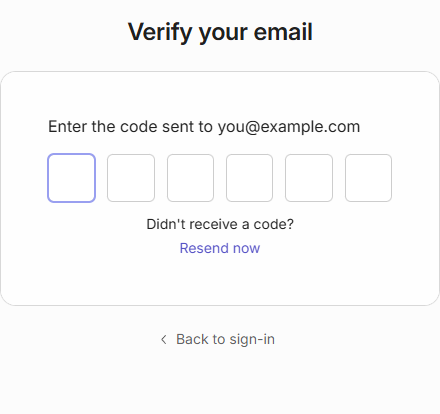
Copy the six digits from the email into the verification screen. The code expires after 10 minutes; if it lapses, use Resend now to get a fresh one. If it hasn't arrived, check your spam folder.
- Once your email is verified, Tangible Cloud redirects you to your dashboard with the onboarding checklist ready for you to work through. See Completing Your Account Onboarding for the next steps.
If you were invited to an existing organization, the flow is different. You'll receive an invitation email with a link that walks you through account creation and joins you to the organization automatically. See Managing Invitations for the invite side of that flow.
Signing in
Once you have an account, signing in takes two steps: you enter your email first, then choose how you want to authenticate (password, passkey, or a one-time code sent to your email).
- Go to tangible.one.
- Tangible Cloud redirects you to the hosted sign-in page. The URL in your browser changes to a
*.authkit.appaddress. This is expected. - Enter your email address and click Continue.
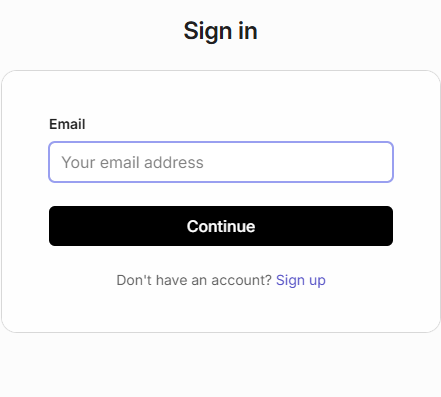
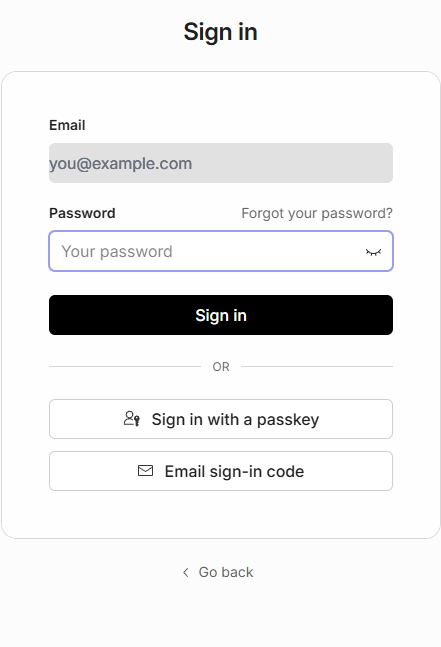
- On the next screen, choose one of the three ways to sign in:
- Password: enter your password in the Password field and click Sign in.
- Passkey: click Sign in with a passkey and approve the request on your device. This requires that you've previously registered a passkey for this account.
- Email sign-in code: click Email sign-in code to receive a time-limited code by email. Open your inbox, copy the code, and paste it on the page to complete sign-in.
- Once your credentials are accepted, you are redirected back to Tangible Cloud and land on the page you originally tried to reach, usually your dashboard.
Signing out
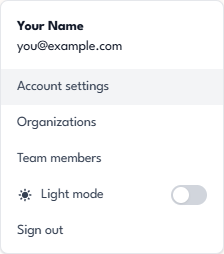
- In the Tangible Cloud header, click the User menu (your initial or avatar).
- Choose Sign out from the menu.
- You are returned to the hosted sign-in page and your session is cleared.
Forgot your password
If you can't remember your password:
-
Start the sign-in flow as normal. Enter your email address and click Continue.
-
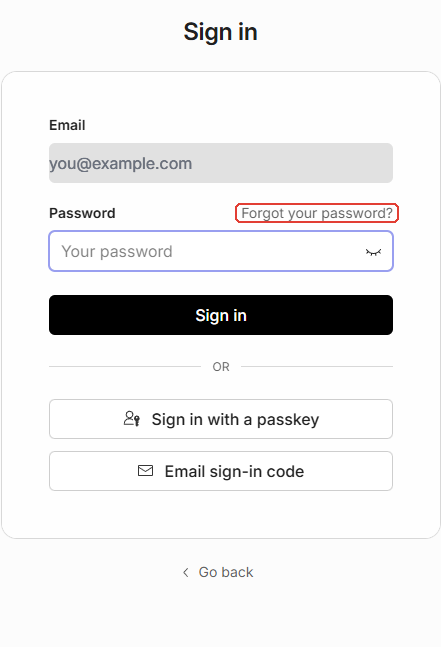
On the password step, click Forgot your password? next to the Password field.
-
Follow the on-screen prompts to receive a password-reset email. The reset link is time-limited. Open it right after it arrives.
-
Follow the link and set a new password.
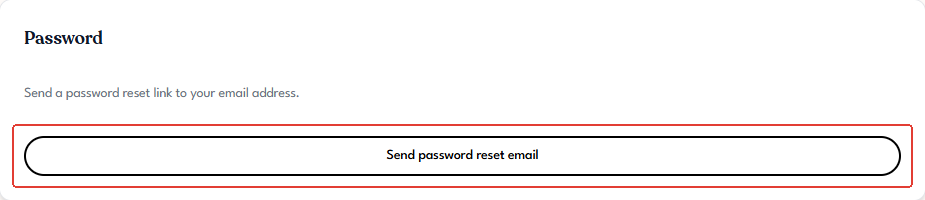
You can also request a password-reset email from inside Tangible Cloud if you're already signed in. Go to Settings → Account and click Send password reset email under the Password section.
If you'd rather not set or reset a password, you can sign in with a one-time Email sign-in code or a passkey instead. Both are available from the password step of the sign-in flow.
Why your email isn't editable in Settings
Your email address is managed by the identity provider, not by Tangible Cloud itself. That means you can see your email in Settings → Account, but you can't change it from within the app. To change the email on your account, contact support.