6.1 Subscriptions Overview
The Billing page is the list of every subscription your organization has, with a link across to Stripe for any deeper action. Click Billing in the left navigation to open it.
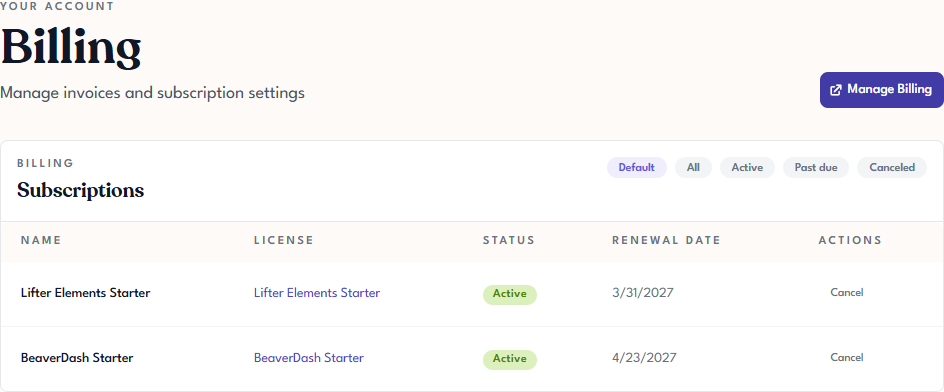
What each column shows
| Column | What it shows |
|---|---|
| Name | A label for the subscription, typically the product and tier (for example, Lifter Elements Starter). |
| License | A link to the license this subscription issued. Clicking it opens the license's detail page. |
| Status | Current billing status: Active, Past due, or Canceled. |
| Renewal Date | The date the subscription renews (and will be charged) if it's active. If canceled, the date service ends. |
| Actions | Cancel on an active subscription (stops it renewing; see Canceling a Subscription); Update payment on a past-due subscription (opens Stripe to fix the failed payment). |
Subscription-to-license mapping
Each subscription corresponds to exactly one license. When you buy a product, Tangible Cloud creates both a subscription (recurring charge) and a license (usable key) and links them together. The subscription keeps the license renewed, and the license is what you actually activate on your sites.
Upgrading the license's tier (see Upgrading a License Tier) updates the same subscription to the new tier's price. Buying another license for the same product creates a separate subscription, so you can cancel or change them independently.
Filtering the list
Above the table, filter pills let you narrow the view:
- Default: active and past-due subscriptions together, with canceled ones hidden. This is the view you land on.
- All: every subscription, including canceled ones.
- Active: only active subscriptions.
- Past due: only subscriptions with a failed payment that hasn't yet been resolved.
- Canceled: only subscriptions that have been canceled.
The pill you're viewing is highlighted in indigo, and the rest stay grey. Unlike the filter pills on the Licensing page, these aren't combinable: only one applies at a time, so clicking a pill replaces the current view rather than adding to it. Your choice is carried in the page's address (for example, ?filter=active), so you can bookmark or share a particular view.
Manage Billing
The Manage Billing button at the top of the Billing page opens the Stripe-hosted customer portal, where you can update your card, view invoices, and change payment methods. See Managing Billing in Stripe.